Digital Accessibility Resources
Document Resources
Microsoft Word
Ensuring Word documents are accessible allows people who use screen readers, keyboard navigation, or other assistive technologies to fully engage with your content. Improving accessibility not only enhances overall usability, but also supports stronger academic outcomes.
The resources below cover both foundational concepts and practical techniques—such as using proper heading structure, adding alt text, managing reading order, and choosing accessible fonts.
To learn more, explore the How to Make an Accessible Document in Microsoft Word video modules, as well as the text-based resource Microsoft Word & Accessibility Best Practices.
Powerpoint
Presentations can create significant barriers if accessibility is not considered during design. The resources below will help you create slides that work for all audiences, including people who rely on screen readers, need captions, or require high‑contrast visuals.
To learn more, explore the video modules How to Author and Test Microsoft PowerPoint Presentations for Accessibility.
Excel
Spreadsheets often contain complex data that can be difficult to navigate without proper accessibility structure. Applying accessible formatting in Excel, such as meaningful column headers, defined table structures, and descriptive sheet names helps ensure that all users, including those who rely on assistive technology, can interpret and work with your data.
To learn more, explore the video modules How to Make an Accessible Spreadsheet in Microsoft Excel.
PDFs are commonly used for sharing finalized documents, forms, and reports, but they are among the most frequently inaccessible file formats if not properly created or remediated. The resources below walk through how to evaluate an existing PDF for accessibility issues and how to fix them using Adobe Acrobat.
To learn more, explore the video modules How to Test and Remediate PDFs for Accessibility Using Adobe Acrobat DC.
You can also request support through the UT Libraries’ Course Materials Service.
Need help with a scanned or secured PDF? Connect with the DAC Document Accessibility Team.
Google has built accessibility features into each of its tools, including Docs, Slides, and Sheets. The resource below provides practical guidance for making your Google content usable for people with disabilities.
To learn more, review the text‑based resource Make Your Documents, Presentations, Sheets, and Videos More Accessible.
Content Accessibility Best Practices
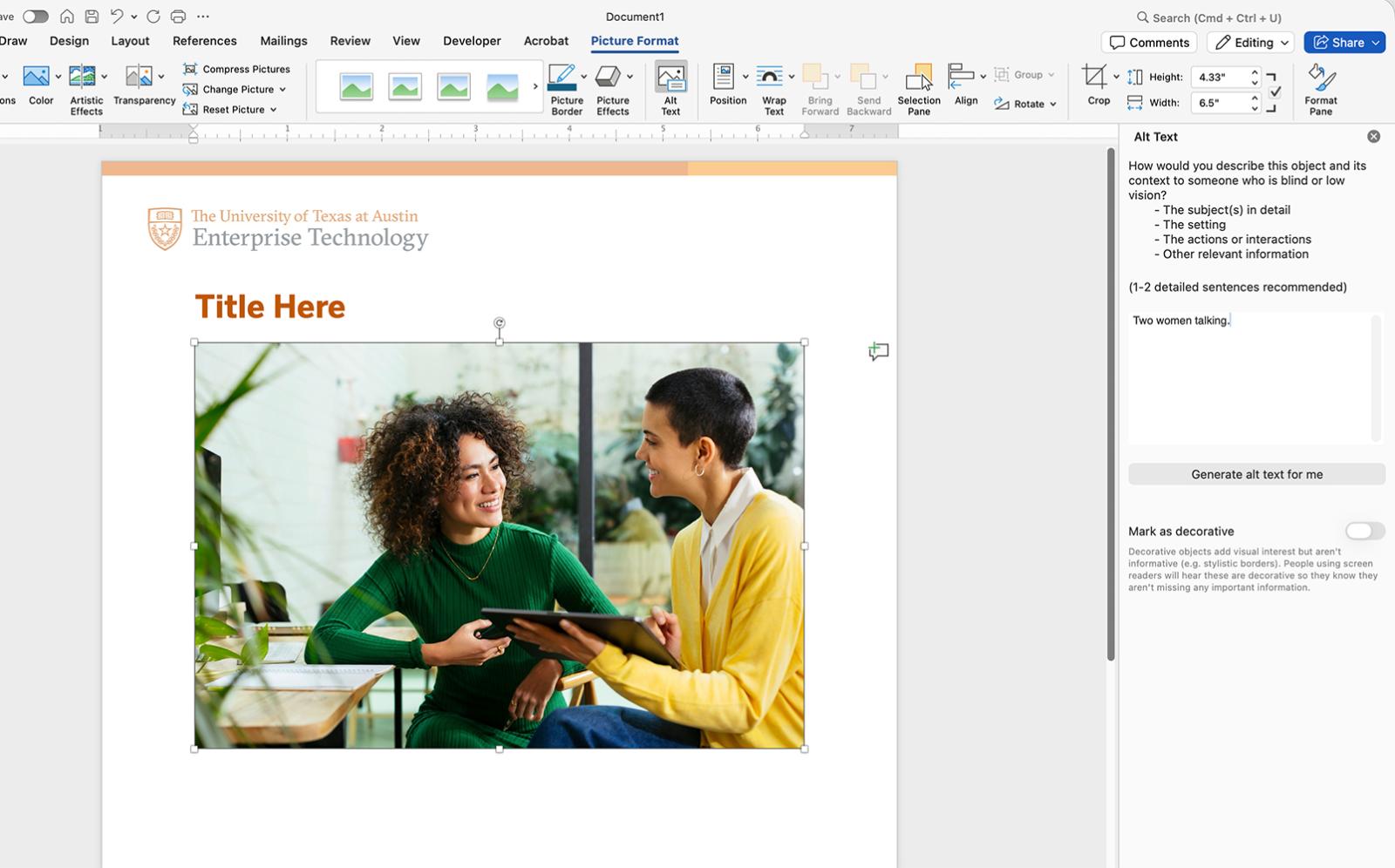
Alternative Text (Alt Text)
Alternative text, commonly called alt text, is a written description of an image that is read aloud by screen readers, displayed when images fail to load, and indexed by search engines. Writing meaningful alt text is one of the most impactful accessibility practices you can adopt, as it makes visual content available to people who are blind or have low vision.
To learn more, review the text‑based resource Authoring Meaningful Alternative Text.
Color Contrast
Color contrast refers to the difference in brightness between text or graphics and their background. Insufficient contrast can make content difficult or impossible to read for people with low vision or color blindness—and can also affect all users in bright lighting conditions. The resource below explains how to evaluate contrast ratios and make design choices that meet accessibility standards.
To learn more, review the text‑based resource Contrast and Color Accessibility - Evaluating Contrast and Color Use.
Website Resources
Learning & Foundations
W3Cx provides an Introduction to Web Accessibility course that ranges from a comprehensive introductory course to hands‑on tools and tutorials for evaluating and testing web accessibility.
Browser‑Based Accessibility Checkers
Manual & Hands‑On Testing
Audio & Video Resources
Microsoft Stream
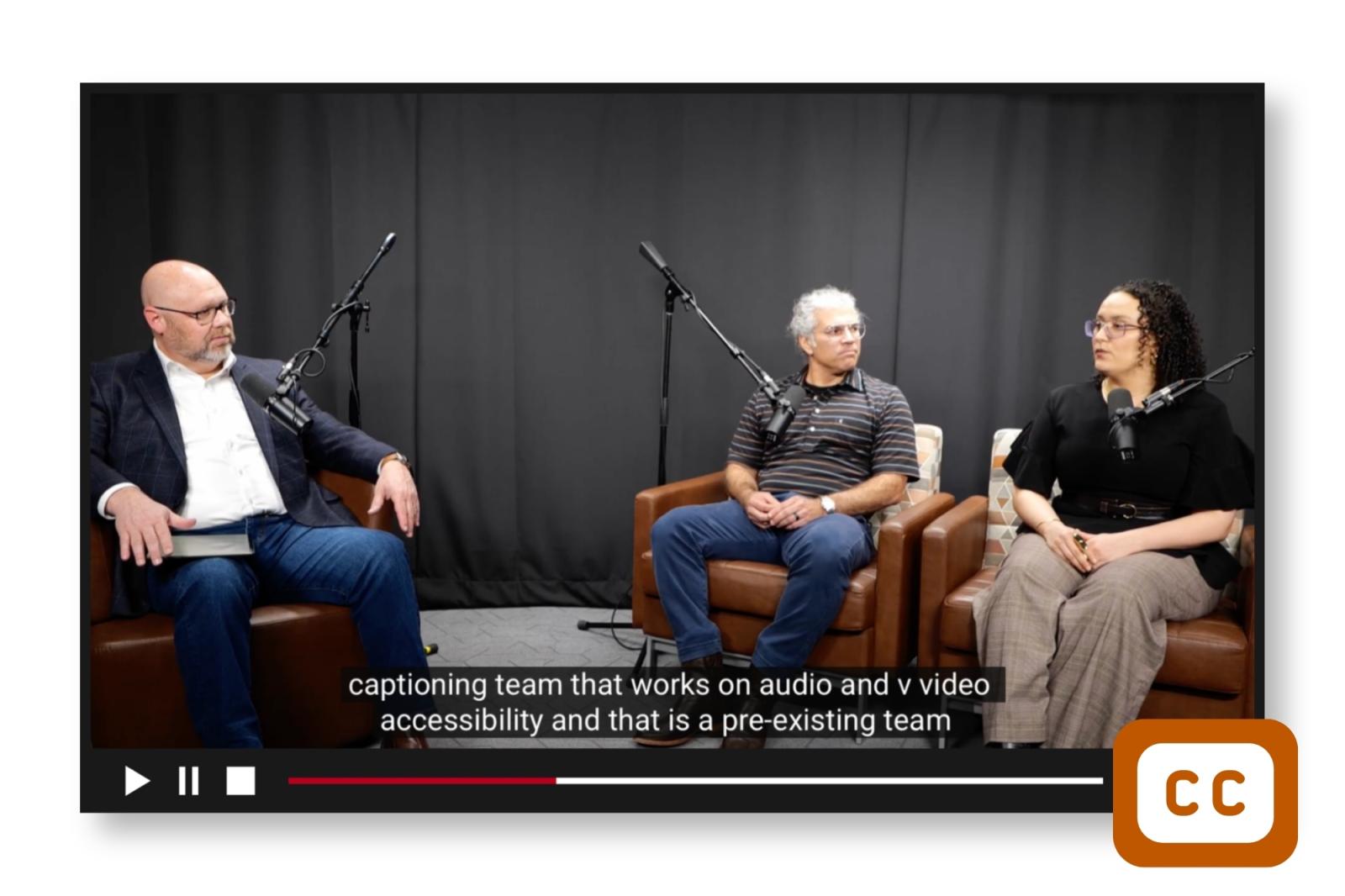
Microsoft Stream is a UT‑endorsed video service that allows you to create and edit automated captions and transcripts to support deaf and hard of hearing students, faculty, staff, and members of the UT community.
To learn more, review the text‑based resource MS Stream Transcriptions and Captions.
Panapto
Whenever you upload a video to UT’s Panopto, you have the option to create automated captions that can be edited for accuracy. Automated captions are useful for a first pass, but they often contain errors and must be reviewed and edited to meet accessibility standards.
To learn more, review the text‑based resources Creating Automated Captions in Panopto and Editing Automated Captions in Panopto.
Amara
Amara offers a free version that allows you to upload videos, create captions, and access captions that other users have made publicly available.
Audio Description
Audio description provides verbal access to visual information in video for audience members who are blind or have low vision. The resources below explain audio description in more detail and offer guidance and tips for creating accessible audio descriptions.
To learn more, review the resource Creating Audio Description.
Need help with captions, transcripts, translation, or audio description? Connect with the Audio/Video Accessibility Team.
Canvas & Course Accessibility Tools
Anthology Ally (Formally Blackboard) for Canvas
Ally Accessibility Platform in Canvas
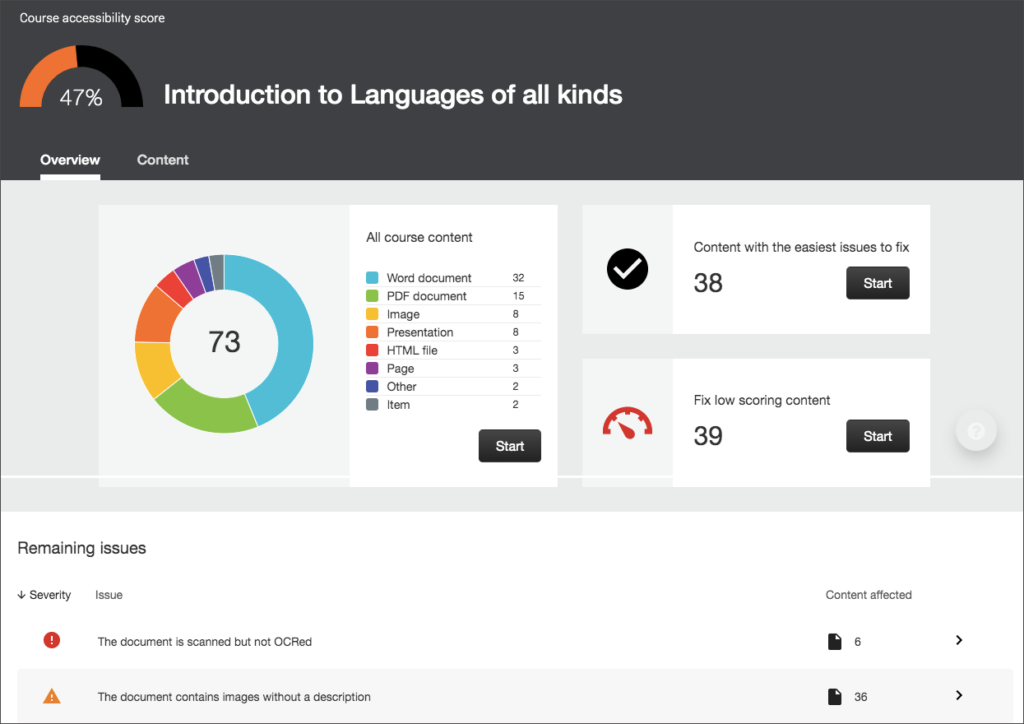
Ally integrates seamlessly with Canvas and automatically scans course materials to help improve digital accessibility by providing accessibility scores and feedback on how to make content more accessible. Ally also creates alternative formats for students, allowing them to choose the format that best meets their needs, such as MP3.
To learn more, explore the video‑based resource Ally Overview for Instructors and the text‑based resource Ally Overview.
Need help improving your Ally score? Attend Ally Office Hours & Workshops.
Syllabus Accessibility
Simple Syllabus
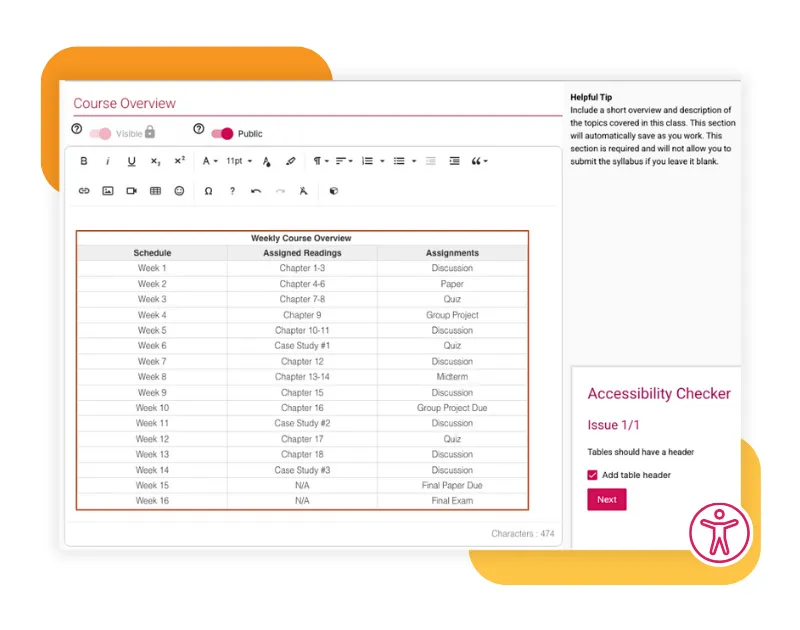
Instructors who use Simple Syllabus can provide consistent, accessible syllabi that align with institutional standards and accessibility best practices.
To learn more, explore the UT Simple Syllabus-Provost Page, which covers the tool, adoption guidance, and use cases.
For hands‑on guidance, visit the Simple Syllabus- Academic Tech Page, which includes how‑to resources, links to vendor documentation, and in‑depth editor tutorials.
If you prefer a document format, review the Simple Syllabus- Instructor Editing Guide, an accessible PDF that covers the basics for getting started with editing.
Professional Development & Training
LinkedIn Learning
These courses focus on accessibility features within Microsoft Office tools. You can access these training videos after logging in.
Make Your Document Accessible
Offered through LinkedIn Learning, this Microsoft Word accessibility lesson is part of the Word Essential Training (Microsoft 365 – 2023) course and focuses on creating accessible documents.
Check for Accessibility Issues
Offered through LinkedIn Learning, this 3 minute video lesson from the Word 2024 Essential Training course helps learners identify and review accessibility issues in Microsoft Word.
Excel's Accessibility Features
Offered through LinkedIn Learning, this 4 minute video lesson from the course, Excel Essential Training (Microsoft 365) highlights the accessibility features in Microsoft Excel.
Use the Accessibility Checker in PowerPoint
Offered through LinkedIn Learning, this 3 minute video lesson from the course, Microsoft Office Accessibility for Beginners focuses on using the accessibility checker in PowerPoint.